Managing App Permissions
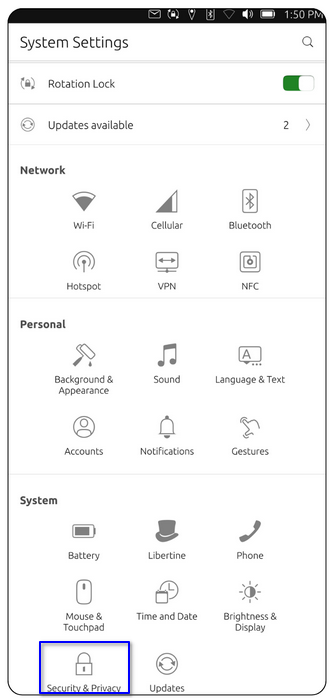
Go to Settings → System → Security & Privacy.
Review and control access to location services, app permissions and more.
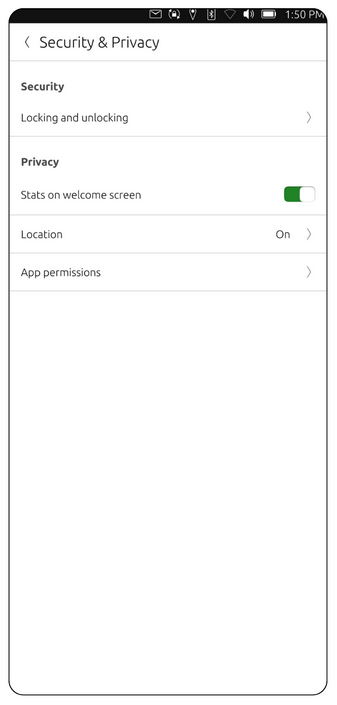
2. Go to App Permissions. Here, you'll view a list of permissions granted.
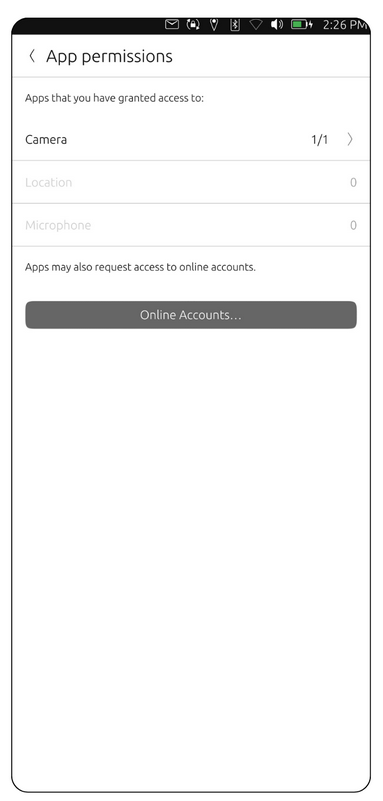
3. Tap on the Camera option. You can also select Online Accounts for more access options.
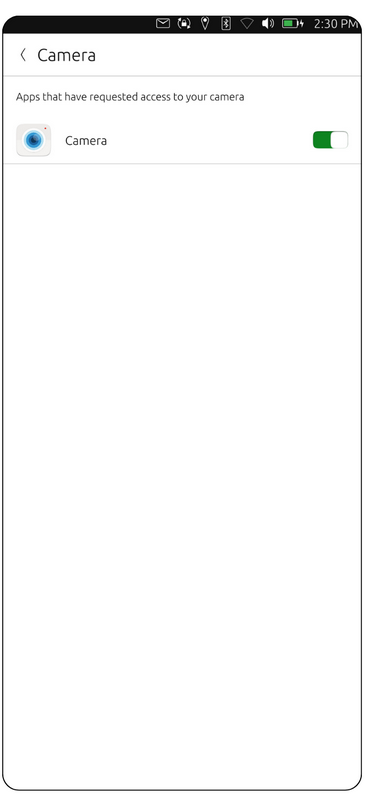
4. Toggle the switch ON/OFF to allow or deny access.
Managing Location Permissions
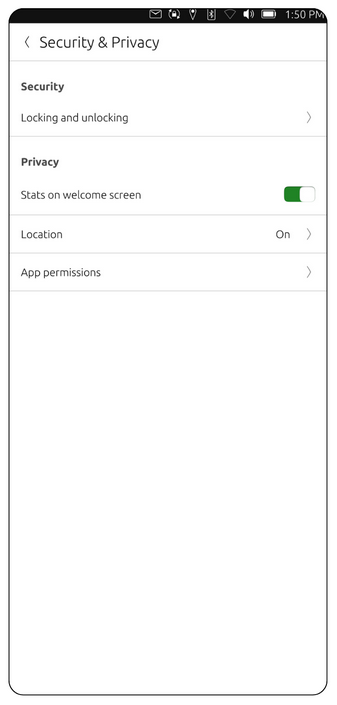
1. Go to Settings → System → Security & Privacy. Then, go to Location.
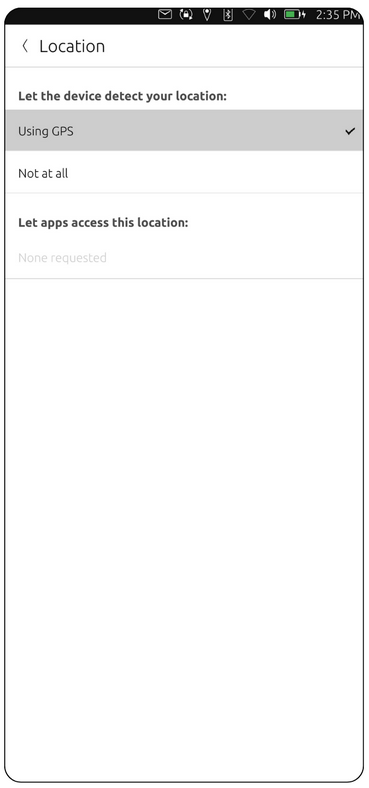
3. Under "Let the device detect your location:" Select "Using GPS" (as shown with the checkmark).
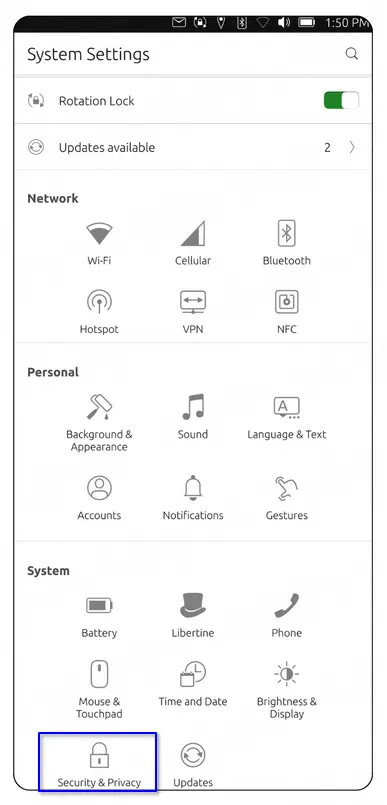
1. Go to Settings → System→ Security & Privacy → Locking and Unlocking.
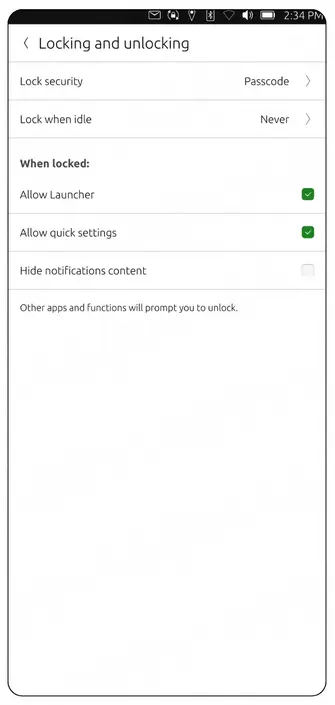
2. Choose a lock method: use a passcode, passphrase, or Swipe (no security). Optionally, enable Lock When Idle to
auto-lock the device.