Using basic apps
In this chapter, we'll go over basic tasks like web browsing, installing applications, browsing your files and more.
You can browse the Internet using the built in Morph Browser. This section will explain how do to so.
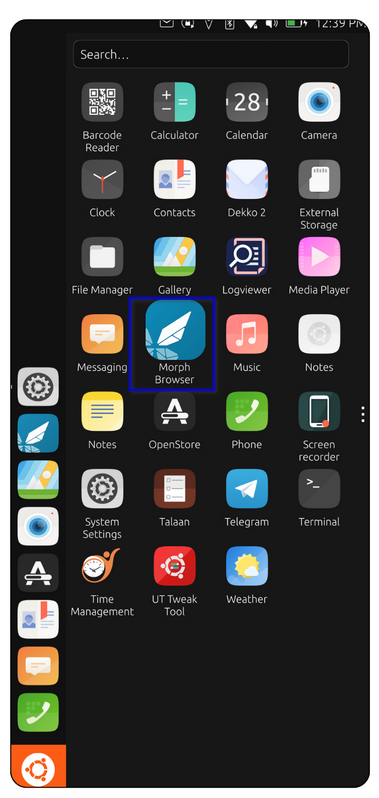
Open the Morph Browser from the app drawer. It's the default web browser on Ubuntu Touch.
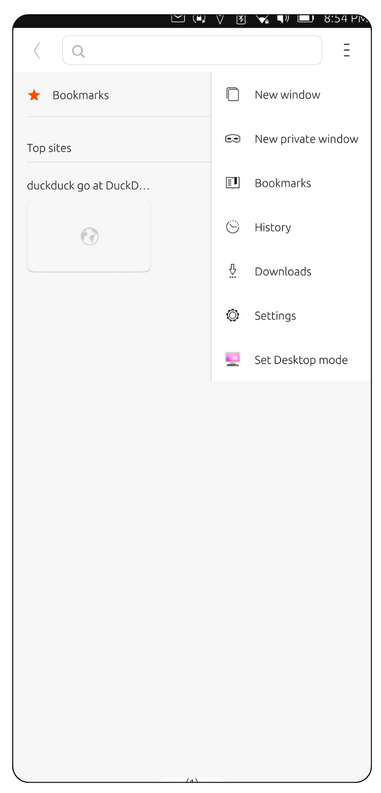
Tap the address bar to enter a website URL or search term. Use the tabs icon to switch, open, or close browser tabs. Tap the hamburger menu for options like bookmarks, history, settings etc.
Ubuntu Touch uses the OpenStore to manage applications. It is a community-driven app store specifically built for Ubuntu Touch devices.
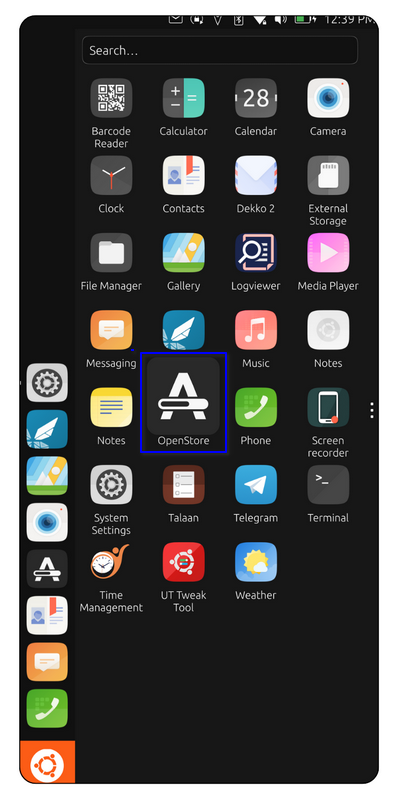
Open the OpenStore app from the app drawer. You can then browse or search for apps using the search bar.
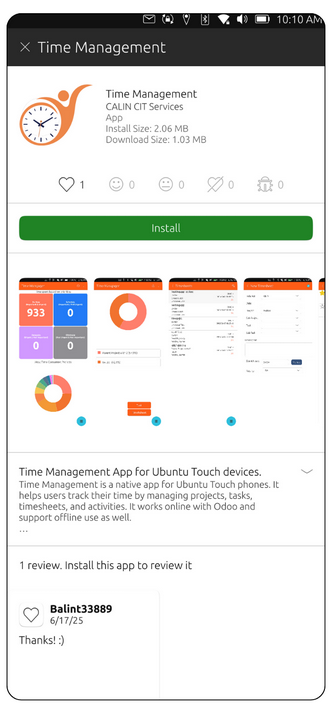
Tap an app to view details, ratings and permissions. Tap Install to download and install the application.
In case that there's an update available, you can tap the app you'd like to update, then tap Upgrade to install it.
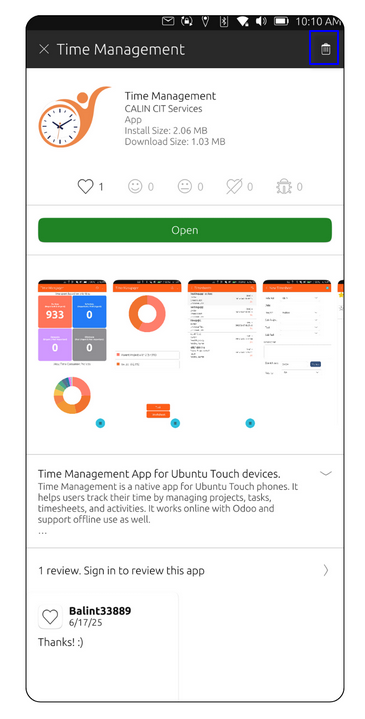
Tap an app to view details, ratings and permissions. Tap Install to download and install the application.
Like any other Linux distribution, Ubuntu Touch has a full-feature command line interface available for advanced users. You can do anything you can normally do in a terminal, like installing packages (apt is not available, Snap is), checking system resources, changing settings and editing files.
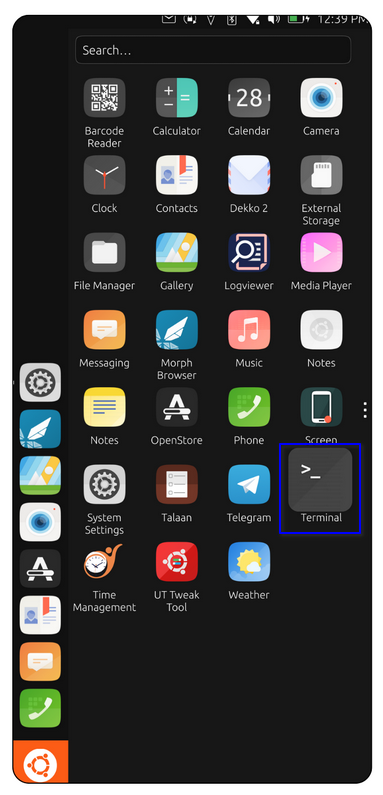
Open the Terminal app from the app drawer and start typing commands!
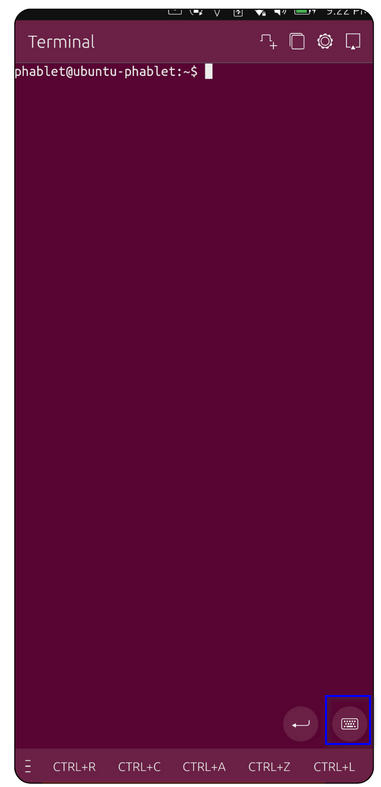
You can use common Unix commands like ls, cd, pwd, and sudo to navigate and control the system. Use sudo for tasks that require elevated privileges. If you're asked for a password, it's the same as your lock screen if you've set one.
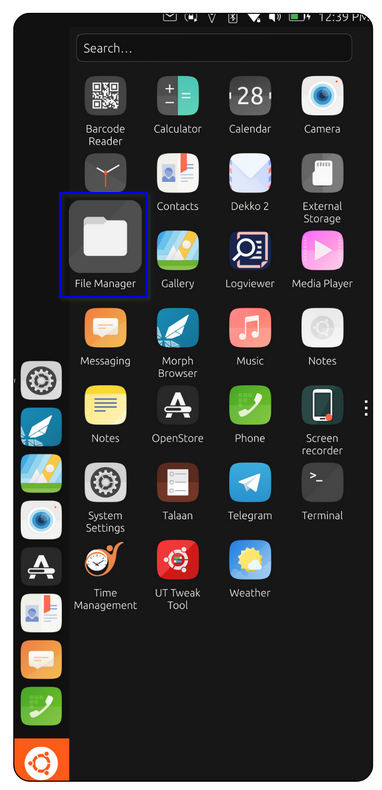
Open the File Manager app from the app drawer. With it, you can explore your file system, browse your files and folders that are stored on your device.
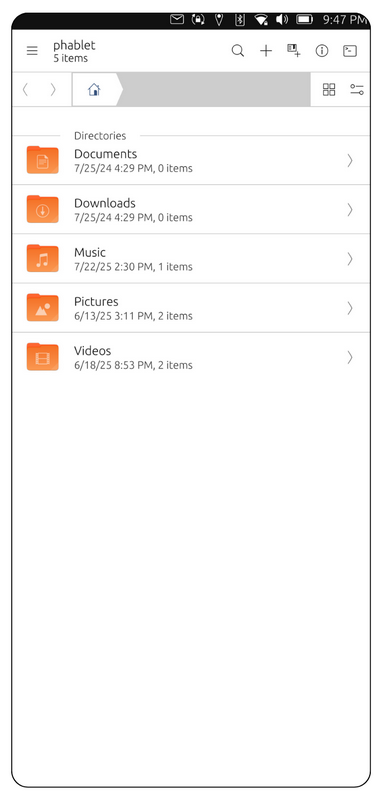
Tap a file to open it, or tap and hold to rename, copy move, or delete. You can use the menu icon to access additional options like sorting and you can access external drives if they're connected. (SD cards, USB flash drives).
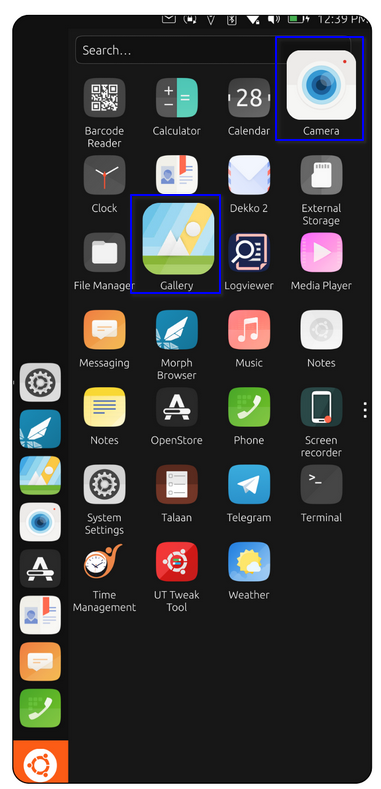
You can take pictures and shoot video in the Camera app. You can then view those in the Gallery application. From there, you can share and delete media aswell.
Ubuntu Touch includes a built-in Messaging app that allows you to send and receive SMS (Short Message Service) and MMS (Multimedia Messaging Service) using your SIM card.
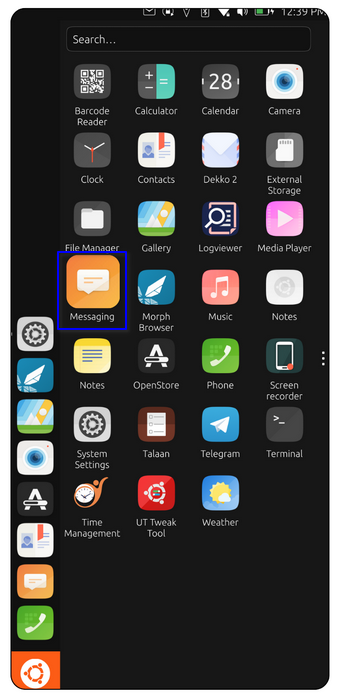
Open the Messaging app from the app drawer. From there, you should see a list of your existing text messages.
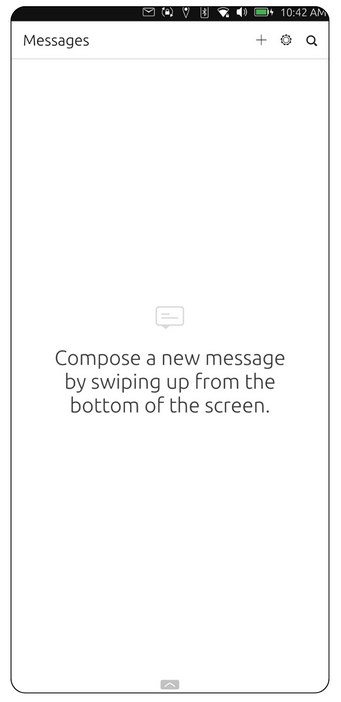
Tap the search icon to search for a message. If you'd like to create a new message, you can tap the '+' icon or swipe up to create a new message.
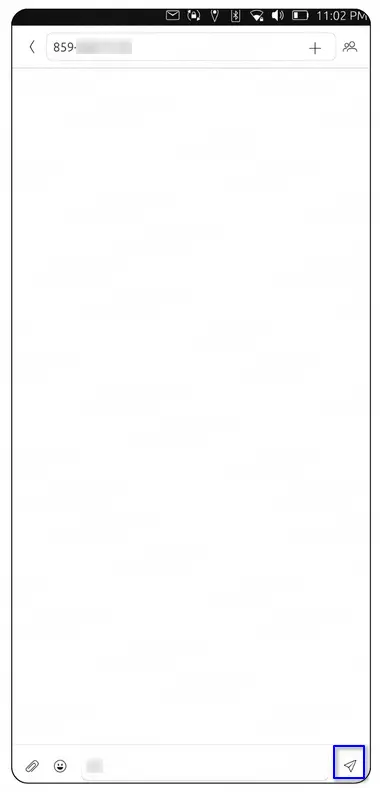
To send a message, enter a contact name or a phone number in the To field, then type your mesasge in the text box at the bottom. Once you're done, you can tap Send to send the message (the little paper plane icon).
Ubuntu Touch includes built-in Contacts and Dialer apps for managing your phonebook and making calls.
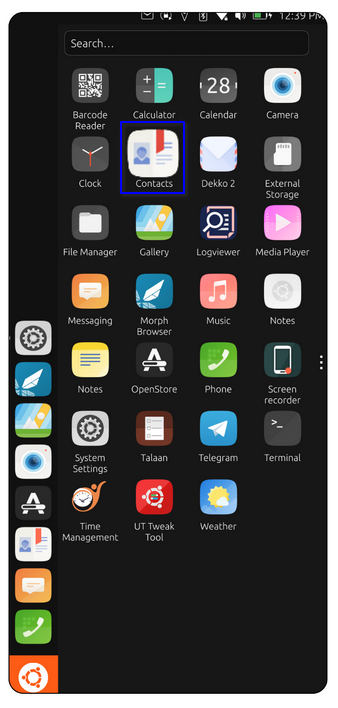
Open the Contacts app from the app drawer. You should see a list of saved contacts.
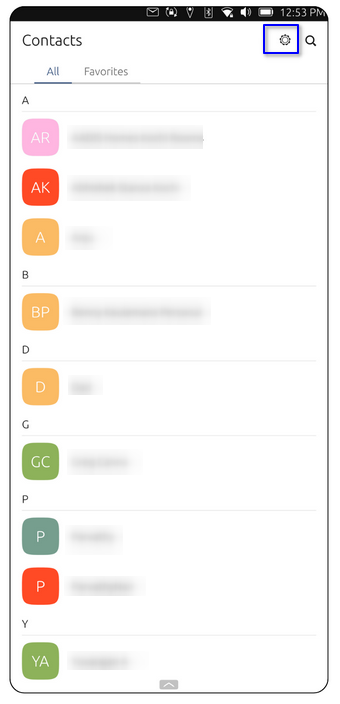
You can also import and export contacts from the Settings menu. Tap the gear icon to open the Settings.
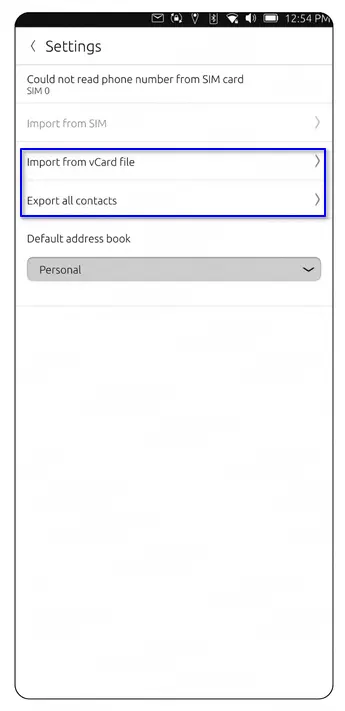
When you're in the Settings, select Import from vCard file. Then, select a file using the File Manager and choose the desired .vcf (vCard) file to import.
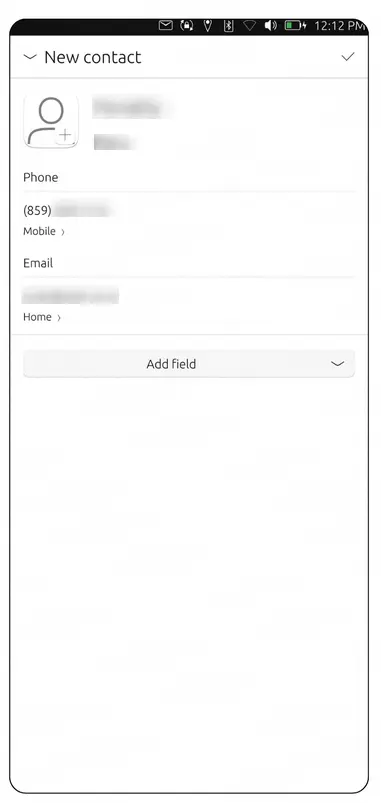
You can create a new Contact by swiping up to open the New Contact page. Enter their First name, last name, phone number and e-mail address, then tap the checkmark to save the contact.
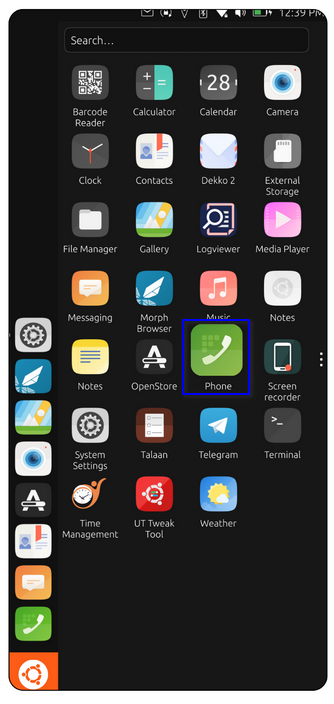
To dial a phone number, open the Phone/Dialer app from the app drawer.
Then, tap the Keypad icon and enter the phone numer. Lastly, tap the Call button (the green phone icon)